Scenario Triggers
Some scenario elements possess the capability to initiate process models, functioning as scenario triggers. For example, an inbound channel may monitor a specific event and trigger a corresponding process model when that event occurs.
In certain situations, you may wish to prevent a scenario from generating new process model instances while allowing the currently running or queued processes to finish. This practice is advisable, for instance, prior to initiating an update of an Orchestra node, ensuring that all active processes complete without initiating new ones.
To activate and deactivate these triggers, a scenario utilizes a suspension state. This state consists of a number of flags that can be set or cleared to suspend (deactivate) or resume (activate) an entire category of scenario triggers.
Trigger Categories
| Button | Description |
|---|---|
| Input Channels | These are inbound channels of a scenario connected to a start event of a process model (e.g., message). |
| Signal Receiver | The signal start event of a process model. |
| Timer | The timer start event of a process model. |
| Services | Services that can initiate process models (REST Service Provider and SOAP Service Provider). |
Suspension State Indicators
| Symbol | Indicates |
|---|---|
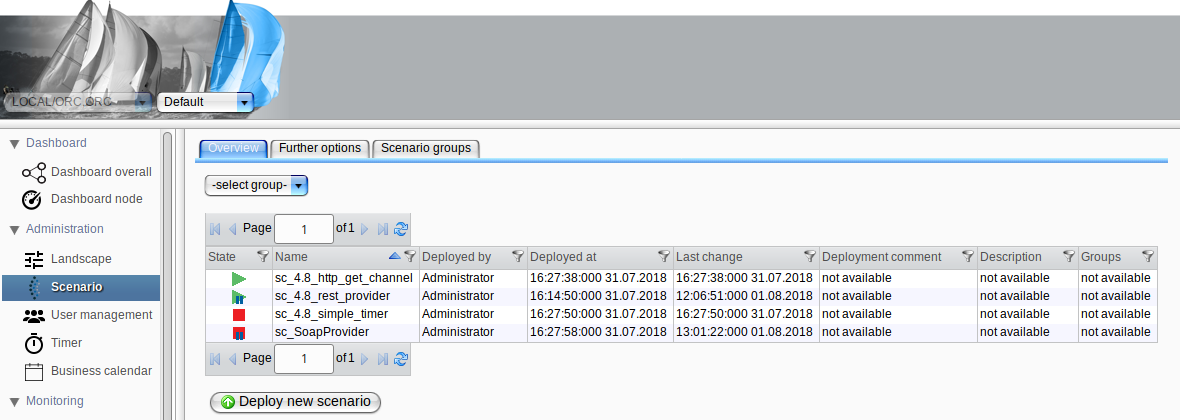
 | Element is activated and not suspended |
 | Element is activated and suspended |
 | Element is deactivated and not suspended |
 | Element is deactivated and suspended |
These indicators are consistent across all trigger categories. For example, in the Timer section, you can observe if a timer is activated or deactivated and whether it is suspended or resumed.
As a single scenario may include multiple trigger elements, its state in the scenario view reflects a combined state. Therefore, if even one trigger category is suspended, the entire scenario state will be marked as suspended.
The screenshot below illustrates all possible combinations of scenario and suspension states:
Using the Context Menu
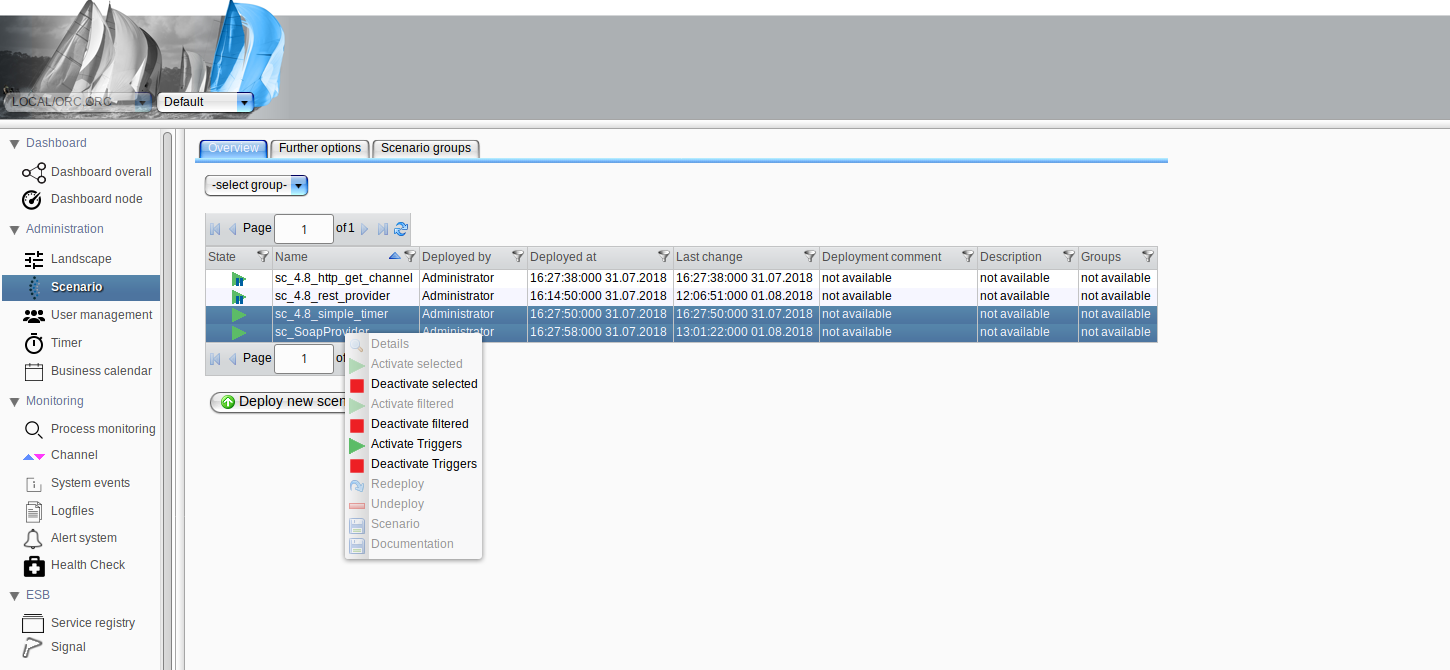
Select one or multiple scenarios in the table, then perform a right-click. A context menu will open, presenting you with several options for activating or deactivating the scenario triggers. This action will activate or deactivate all triggers for the entire scenario. If you wish to activate or deactivate only a specific trigger category, refer to the chapter Scenario Details.
Using the Scenario Detail View
Select a single scenario and perform a right-click, or right-click directly on a scenario and select "Details" from the context menu. A dialog will appear, displaying additional details about the scenario. At the bottom of the dialog are the buttons "Activate Triggers" and "Deactivate Triggers," which function as their labels indicate. You can also activate or deactivate specific trigger categories in the Trigger View. Further details can be found in the chapter Scenario Details.